h2는 인메모리 관계형 데이터베이스로 별도의 설치 없이 프로젝트 의존성만으로 관리가 가능하다. 인메모리 즉, 메모리에서 실행되기 때문에 어플리케이션이 재시작될때 마다 초기화되어 주로 테스트 용도로 사용된다.
1. 의존성 주입
gradle의 경우
    implementation 'org.springframework.boot:spring-boot-starter-data-jpa'
    implementation 'com.h2database:h2'
maven의 경우
<dependency>
    <groupId>org.springframework.boot</groupId>
    <artifactId>spring-boot-starter-data-jpa</artifactId>
</dependency>
<dependency>
    <groupId>com.h2database</groupId>
    <artifactId>h2</artifactId>
    <scope>runtime</scope>
</dependency>
2. 데이터베이스 구성
datasource의 url, driverClassName, username 등을 설정한다. properties 파일 작성 시 띄어쓰기나 공백에 주의할 것.
(중간에 Cannot load driver class: org.h2.Driver 오류가 발생하였는데, 해당 입력 줄 끝에 공백이 들어가서 발생한 오류였다.)
properties의 경우
spring.datasource.url=jdbc:h2:mem:testdb
spring.datasource.driverClassName=org.h2.Driver
spring.datasource.username=sa
spring.datasource.password=password
spring.jpa.database-platform=org.hibernate.dialect.H2Dialect
yml의 경우
spring:
  datasource:
    url: jdbc:h2:mem:mydb
    username: sa
    password: password
    driverClassName: org.h2.Driver
  jpa:
    database-platform: org.hibernate.dialect.H2Dialect
3. 콘솔 사용 설정
properties에 콘솔 사용을 true로 설정.
spring.h2.console.enabled=true
yml의 경우
spring:
  h2:
    console.enabled: true
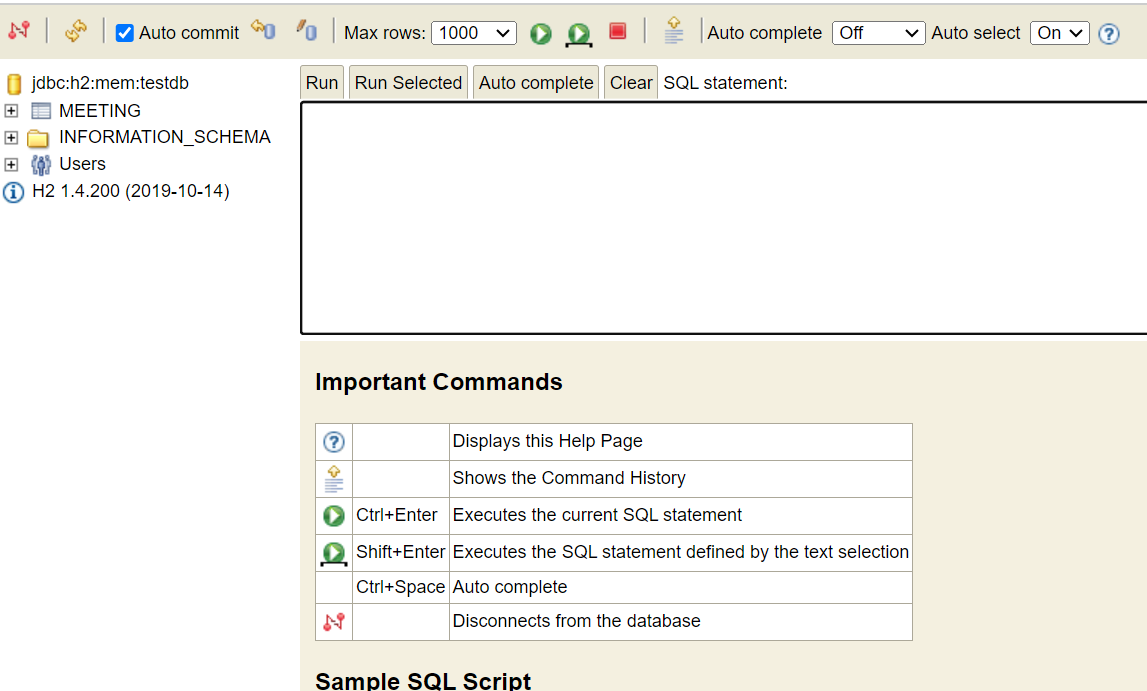
이후 /h2-console을 주소창에 입력하면 콘솔 로그인 화면이 출력된다. properties에 입력한 username과 password 입력 후 [Connect] 버튼 클릭하면 연결됨.

참고 사이트 :
https://www.baeldung.com/spring-boot-h2-database
